Documentation
ETHER - Creative Business WordPress Theme
Thank you so much for purchasing our item from themeforest.
- Version: 3.0
- By: Thematicwebs
- Created: 3 September 2014
- Last Update: 15 August 2025
If you have any questions that are beyond the scope of this help file, Please feel free to email via Item Support Page.
Installation
Documentation and examples how to install: WordPress, our Theme and the Required Plugins.
Installing WordPress
Before beginning the installation and configuring of your new theme, you must first have WordPress already installed on a server. There is a very detailed guide at Wordpress Codex which will walk you through every step.
Installing Theme
Theme installation can be done through your WordPress Dashboard using the uploader or via FTP connection to your server directly.
Uploading Through WordPress
- Select "Appearance" and then "Themes"
- Select the "Add New" button at the top of the page and then select the "Upload Theme" button
- Choose Ether theme "ether.zip" file
- Select "Install Now"
- Once the theme is fully uploaded and installed, click "Activate" to activate the WordPress theme.
- Install and activate required plugins
One Click Demo Installation
After Installing and activating Ether theme and its required plugin, you can set a demo Ether site on your server
Intall Ether WordPress Theme Demo
- Select "Appearance" and then "Import Demo Data"
- Scroll down and click on "Import Demo Data" Button
- Scroll down and click on "Continue & Import" button
- After completion, please check that Menu set to 'Main Menu'.
- Go to your Dashboard -> MC4WP. and click on save button to save Mailchimp subscription form
- Sometimes it does not load the menu so please go to your Dashboard -> Pages -> Home. and edit it. and at the last please select OnePage menu.
- If contact form not loaded then edit the page with Elementor and edit the form section and select Ether Contact Form.
- For About Us & Services Sections: If services section not loaded then edit the page with Elementor and edit the section and select any category to show specific services.
Theme Options
A very powerful Theme Options Panel is provided with Ether. You can handle and customise the theme by using these options easily.
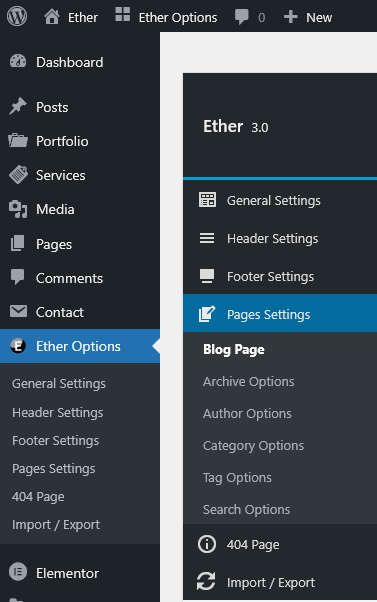
- Just go to your site "Dashboard" and select "Ether Options"
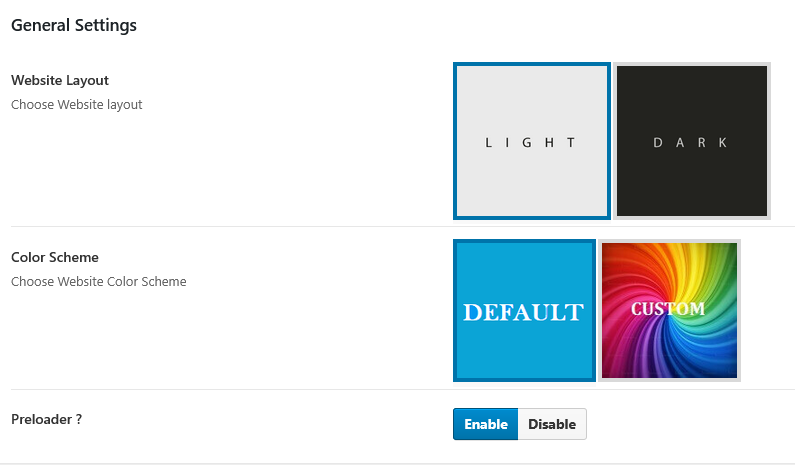
General Options
In General Options, you can control general options for theme
- Website Layout - Light / Dark. Choose the default theme layout.
- Color Scheme - Select the default color scheme for your website.
- Preloader ? - A switch to show/hide preloader screen on your website.
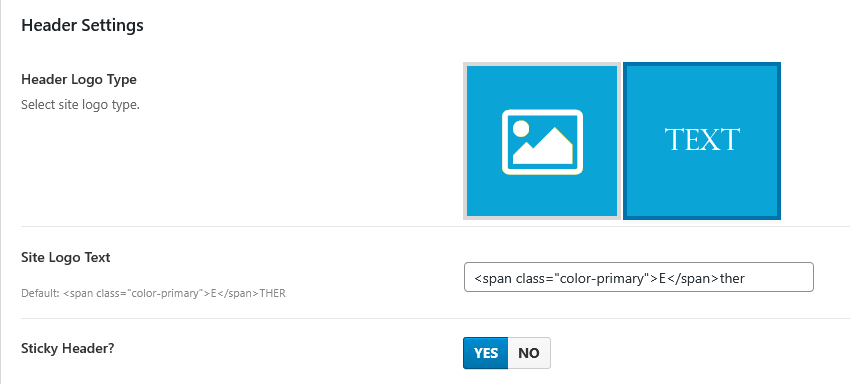
Header Settings
In Header Settings, you can control default header settings for theme
-
Header Logo Type - Two types of options for the logo is given
- Image Logo - If you select this type then you need to upload image and also option to select logo maximum width.
- Text Logo - If you select this option then you need to add text as your site logo.
- Sticky Header? - A switch to make header sticky.
Footer Options
In Footer Options, you can control footer options for theme
- Footer Copyright Text

Pages Settings
In Pages Settings, you can control options for following pages
- Blog Page Options
- Archive Page Options
- Author Page Options
- Category Page Options
- Search Page Options
- Tag Page Options
- 404 Page Options
Every page options have the same options except 404 Page
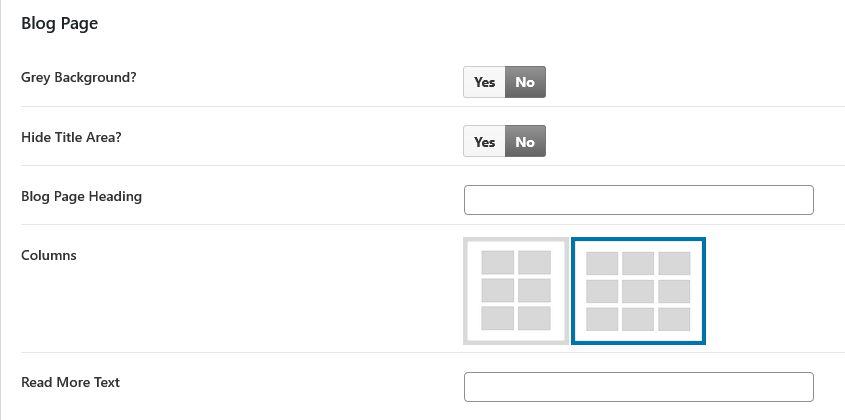
- Grey Background? - A switch to make page background grey.
- Hide Title Area? - Enable this if you want to hide title area.
- Columns - Select two or three columns.
- Read More Text - Text for read more button.
only Blog Page Option has one extra field
- Blog Page Heading - Heading for page.
404 Page
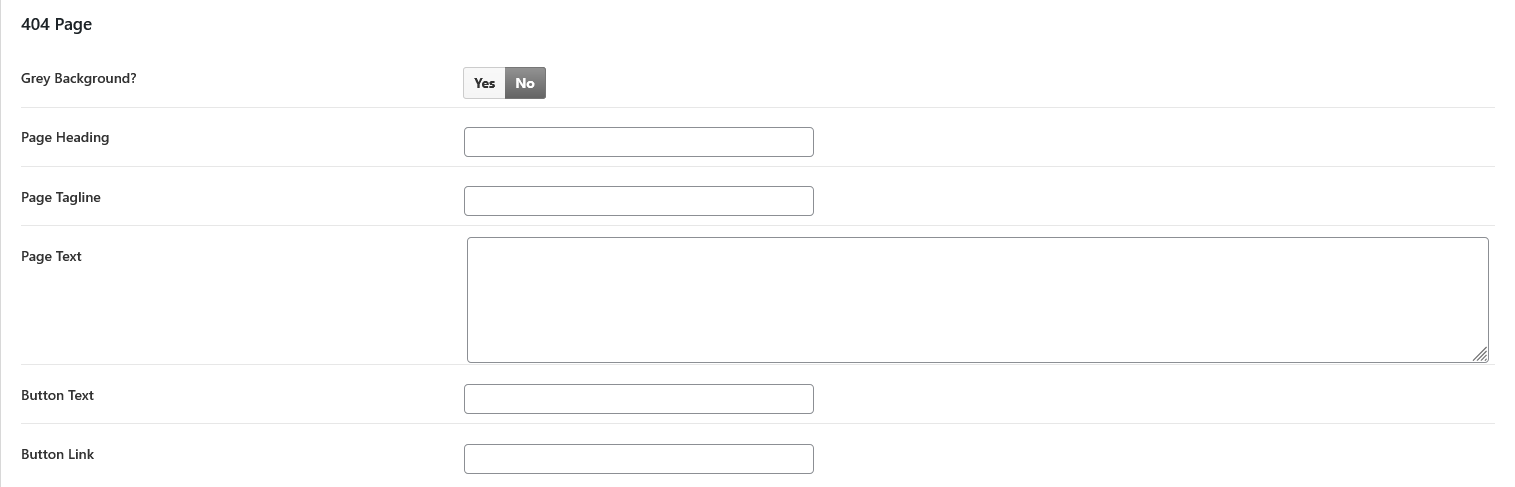
In 404 Page, you can control options for 404 Error page
- Grey Background? - A switch to make page background grey.
- Page Heading - Heading for 404 page.
- Page Tagline - Tagline for 404 page.
- Page Text - Text for 404 page.
- Button Text - Button Text for 404 page.
- Button Link - Button link for 404 page.
Blog Posts
If you want to add new blog post, go to your site "Dashboard - Posts - Add New". If you want to edit any existing post then go to your site "Dashboard - Posts" and click on any existing post you want to edit.
In each post, you have the same options
- Title - Title of the post
- Text - Detail text about post
-
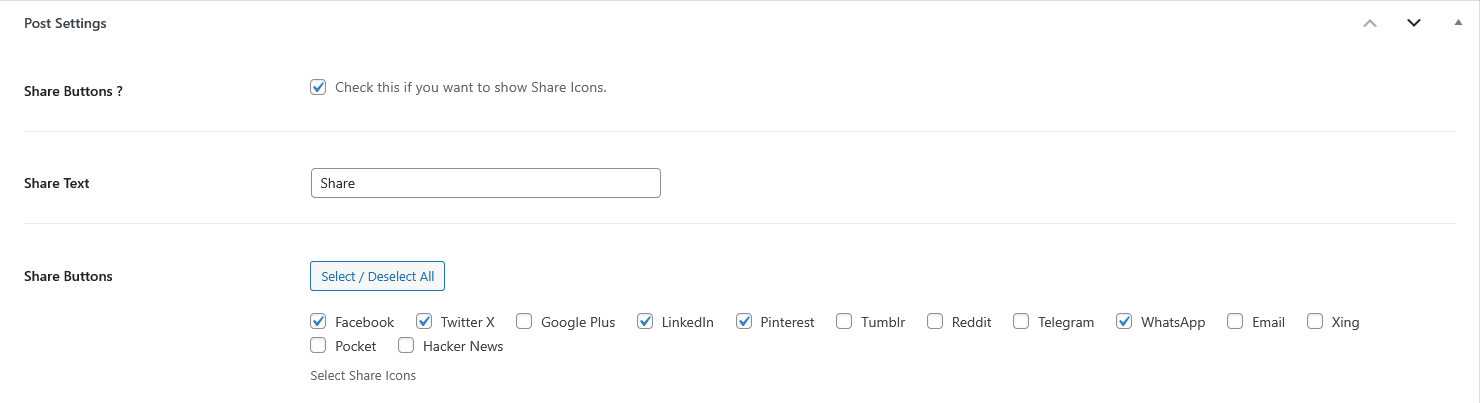
Post Options - Here you have one option
- Share Buttons ? - A switch to show/hide share buttons.
- Share Text - A field to add text.
- Share Buttons - Button list for share section.
- Feature Image - Image for post
- Excerpt - An optinal field
-
Status & visibility
- Visibility - Post status ( Public, Private or Password Protected )
- Publish - Publist date of the post
- Stick to the top of the blog - Checbox to make post sticky
- Author - Select author of the post ( for Admin account only)
- Trash - To delete the blog post
- Publish - Date and time for the post.
-
Link
- URL Slug - slug of a post
- View Post - Link to visit the post frontend
- Author - Author the post.
- Template - Select the template for the post.
-
Discussion - Checkbox for the following
- Open/Close
- Allow pingbacks & trackbacks
-
Format - Select format for the post
- Audio
- Standard
- Video
-
Categories
- Checkboxes of post categories
- Add New Category - Option to add new category
- Tags - A field where you can add multiple tags for post
Pages
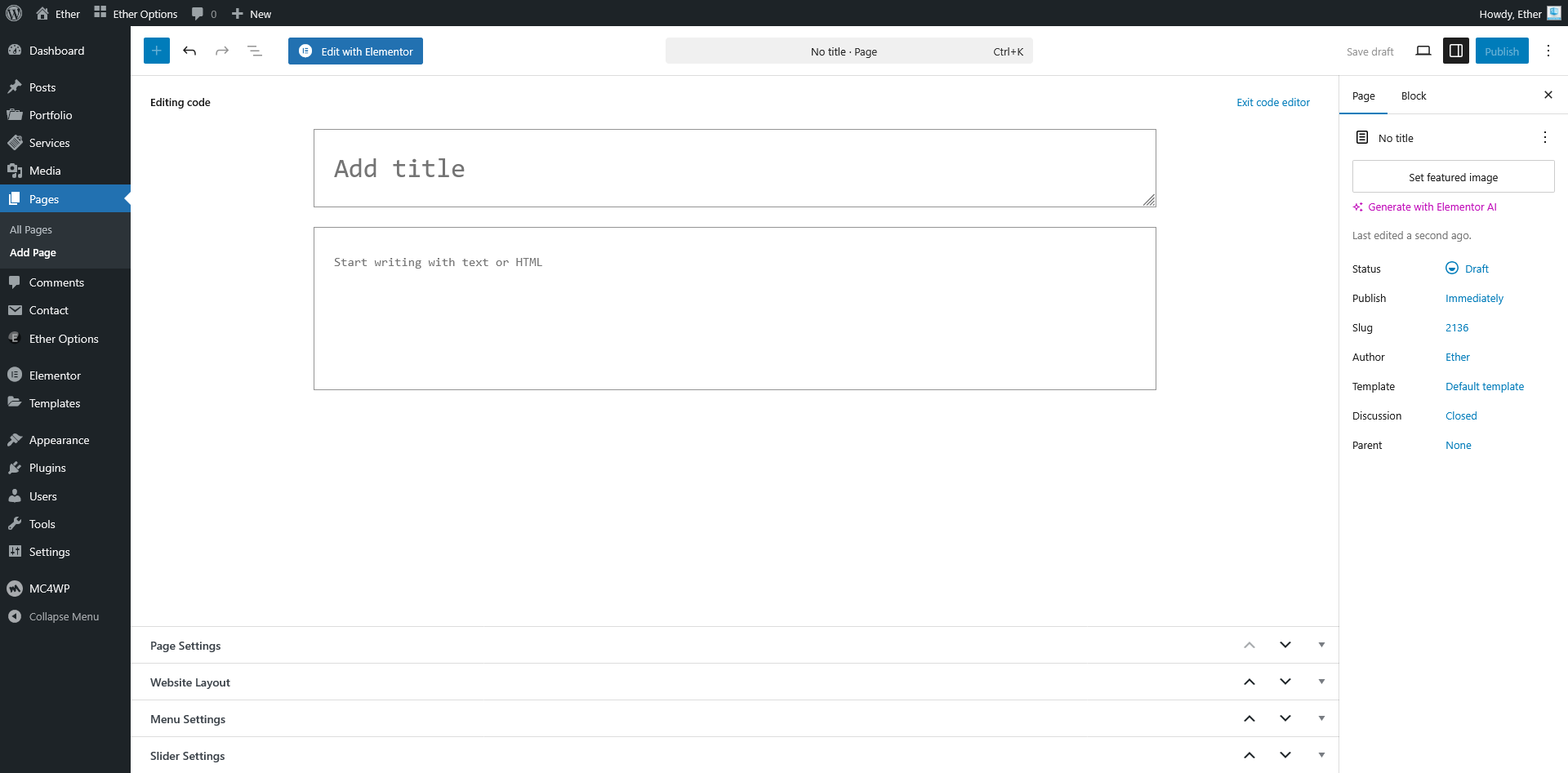
If you want to add new page, go to your site "Dashboard - Page - Add New". If you want to edit any existing page then go to your site "Dashboard - Pages" and click on any existing page you want to edit.
In each page, you have the same options
- Title - Title of the page
- Textarea - here you can add content about page.
-
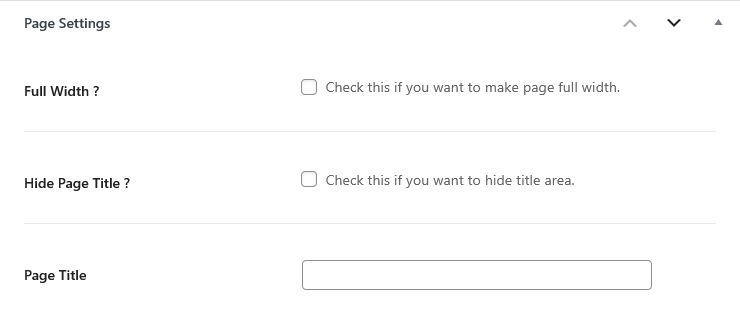
Page Settings - Here you have three options
- Full Width ? - A checkbox to make page full width or not.
- Hide Page Title ? - A checkbox to show/hide title area.
- Page Title - A field to add title for page.
-
Website Layout - Here you have one option
- Theme Layout - Select the layout (Default, Light OR Dark)

-
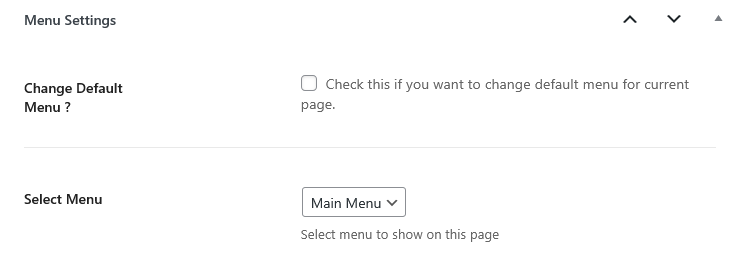
Menu Settings - Here you have two options
- Change Default Menu ? - Check this if you want to change the default menu for this page
- Select Menu - Select the menu for this page only
-
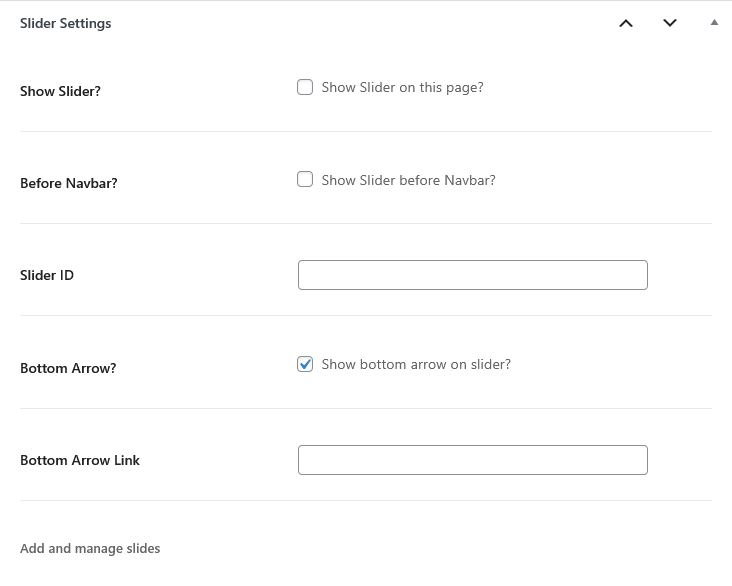
Slider Settings - Here you have four options
- Show Slider? - Check this if you want to add slider on this page
- Before Navbar? - Check this if you want to show slider before Navbar.
- Slider ID - You can add ID for slider - Its optional
- Bottom Arrow? - Check this if you want to add an arrow icon on the bottom area of slider.
- Bottom Arrow Link - Add link for the Bottom Arrow.
-
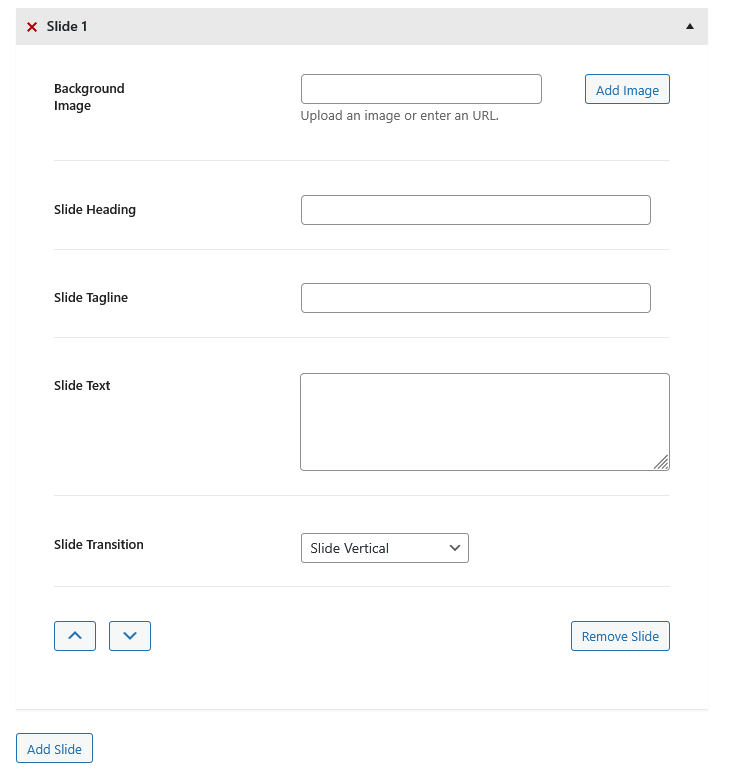
Add and manage slides - An field where you can add slides content multiple times. Each Slide has the following options:
- Background Image
- Slide Heading
- Slide Tagline
- Slide Text
- Slide Transition
- Feature Image - Image for page
-
Status & visibility
- Visibility - Page status ( Public, Private or Password Protected )
- Publish - Publist date of the page
- Author - Select author of the page ( for Admin account only)
- Trash - To delete the current page
- Publish - Select date and time to publish this page
- Link - Add slug for this page
- Author - Select author for this page
- Template - Here you can select template for page
- Discussion - Checkboxes to Allow comments
- Parent - You can select any page as a Parent page of current page
WordPress Pages Article WordPress Create New Page Aticle
We are using Elementor, so we edit page using Elementor.
Portfolio
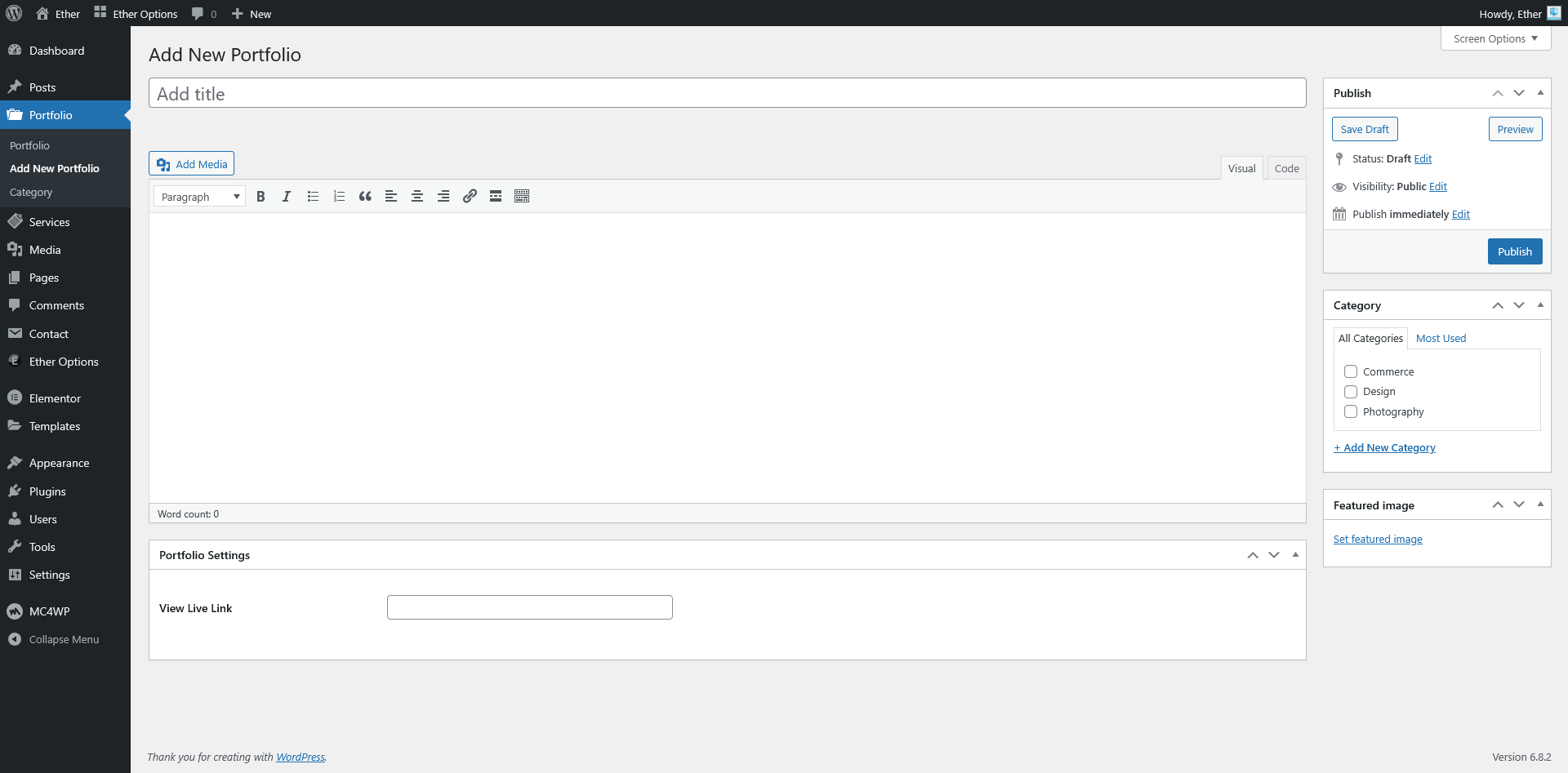
If you want to add new portfolio, go to your site "Dashboard - Portfolio - Add New Portfolio". If you want to edit any existing portfolio then go to your site "Dashboard - Portfolio" and click on any existing portfolio you want to edit.
In each portfolio, you have the same options
- Add Title - Title of the Portfolio
- Content - Content of the Portfolio
-
Portfolio Settings - Here you have only one option
- View Live Link - Add link for the portfolio
-
Publish
- Status - Portfolio status ( Published, Pending Review or Draft )
- Visibility - Portfolio status ( Public, Private or Password Protected )
- Publish - Publish date of the Portfolio
- Move to Trash - To delete the Portfolio
- Categories - Here you can select the category for Portfolio.
- Featured Image - Here you can add the featured image for Portfolio.
Services
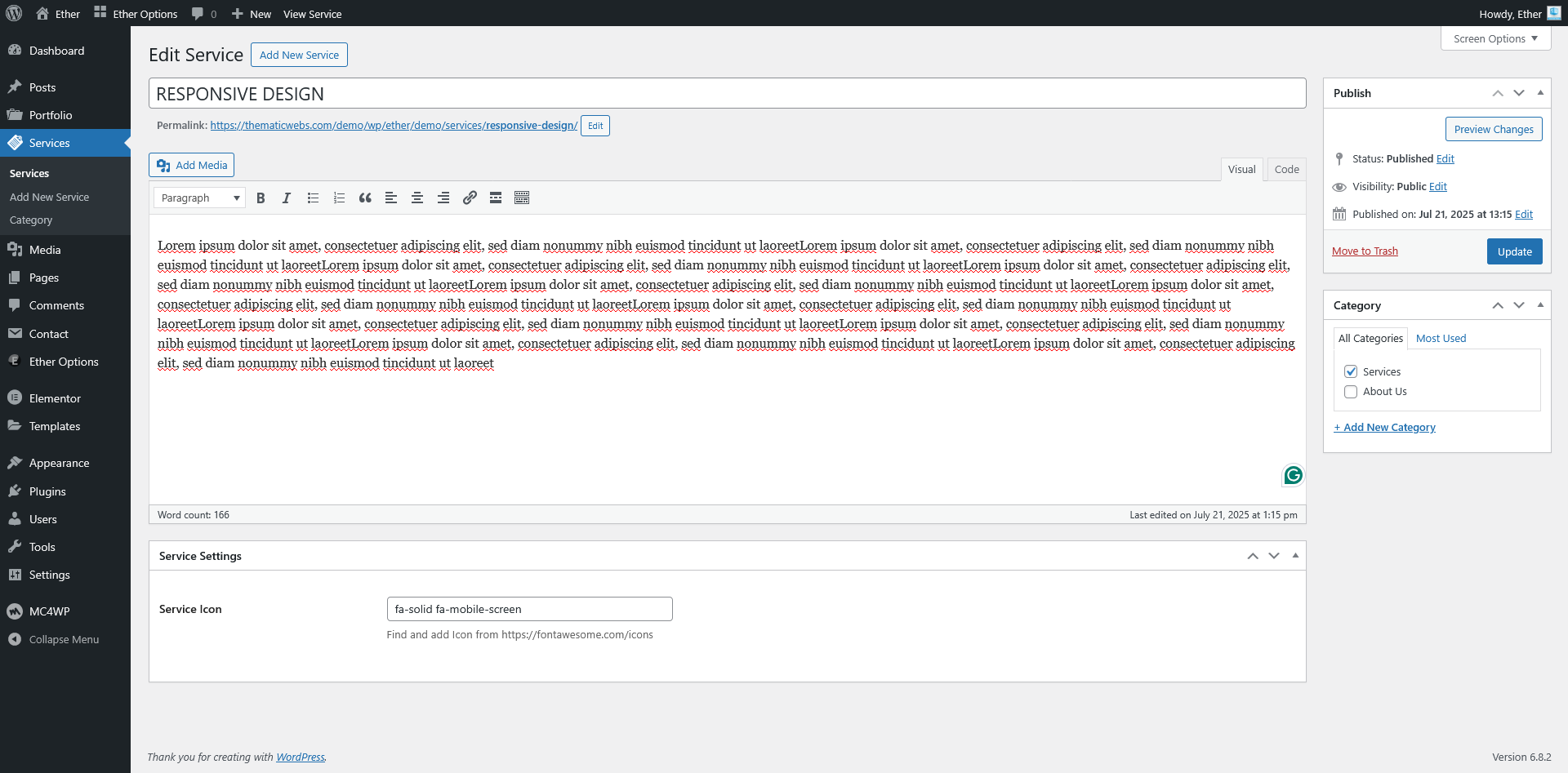
If you want to add new service, go to your site "Dashboard - Services - Add New Service". If you want to edit any existing service then go to your site "Dashboard - Services" and click on any existing service you want to edit.
In each service, you have the same options
- Add Title - Title of the Service
- Content - Content of the Service
-
Service Settings - Here you have only one option
- Service Icon - Add icon for the service (e.g., fa-solid fa-mobile-screen)
-
Publish
- Status - Service status ( Published, Pending Review or Draft )
- Visibility - Service status ( Public, Private or Password Protected )
- Publish - Publish date of the Service
- Move to Trash - To delete the Service
- Categories - Here you can select the category for Service.
Contact Form 7
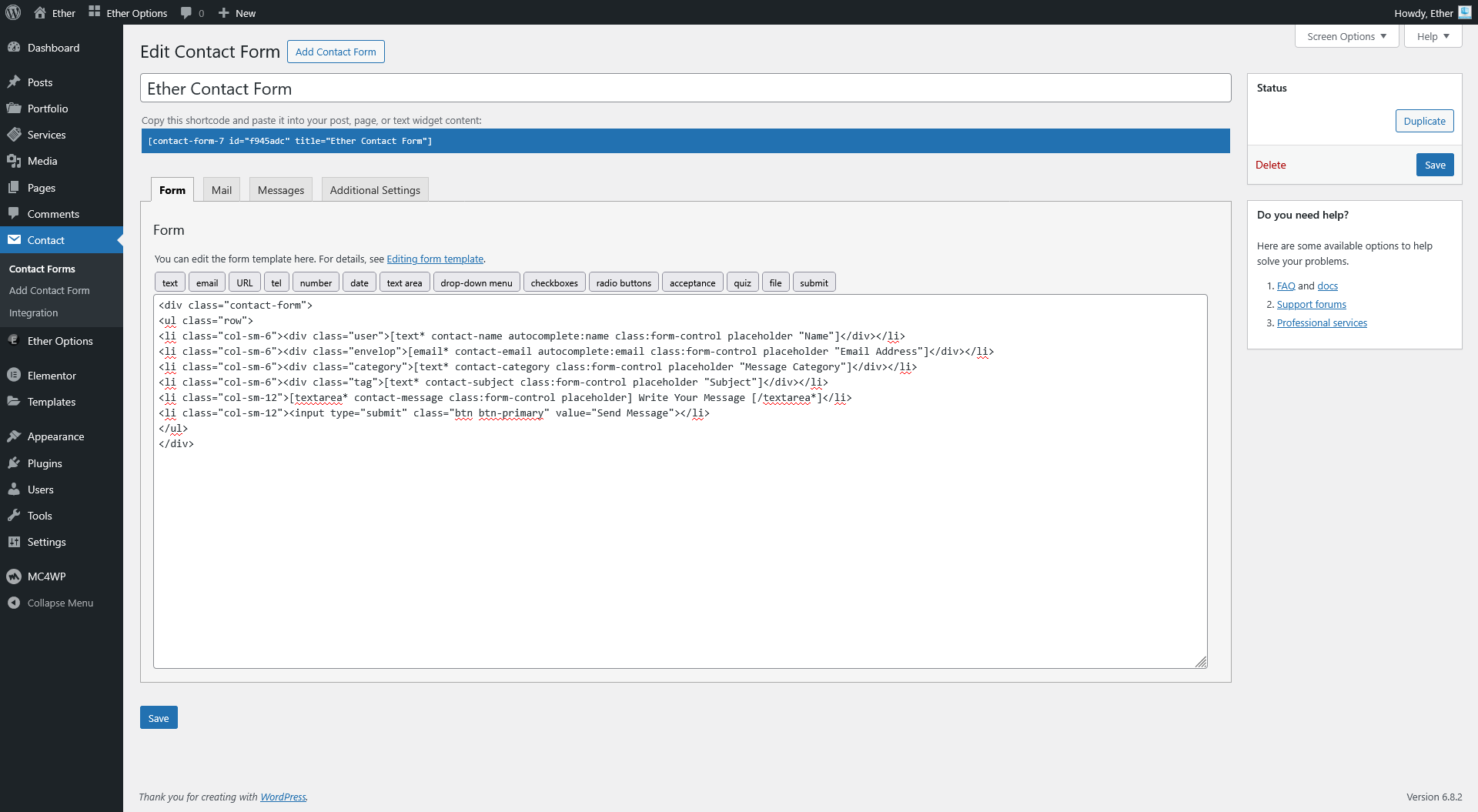
If you want to add new form, go to your site "Dashboard - Contact - Add New". If you want to edit any existing form then go to your site "Dashboard - Contact - Contact Forms" and click on any existing form you want to edit.
In each form, you have the same options
- Title - Title of the form
-
Four Tabs
- Form - Code of the form
- Mail - control email settings
- Messages - Here you can control message for form to show on actions
- Additional Settings - You can add customization code snippets here. For details, see Additional settings.
Ether Contact Form
In Ether, we have only one form
Ether Contact Form
							<div class="contact-form">

							<ul class="row">

							<li class="col-sm-6"><div class="user">[text* contact-name autocomplete:name class:form-control placeholder "Name"]</div></li>

							<li class="col-sm-6"><div class="envelop">[email* contact-email autocomplete:email class:form-control placeholder "Email Address"]</div></li>

							<li class="col-sm-6"><div class="category">[text* contact-category class:form-control placeholder "Message Category"]</div></li>

							<li class="col-sm-6"><div class="tag">[text* contact-subject class:form-control placeholder "Subject"]</div></li>

							<li class="col-sm-12">[textarea* contact-message class:form-control placeholder] Write Your Message [/textarea*]</li>

							<li class="col-sm-12"><input type="submit" class="btn btn-primary" value="Send Message"></li>

							</ul>

							</div>
Mailchimp
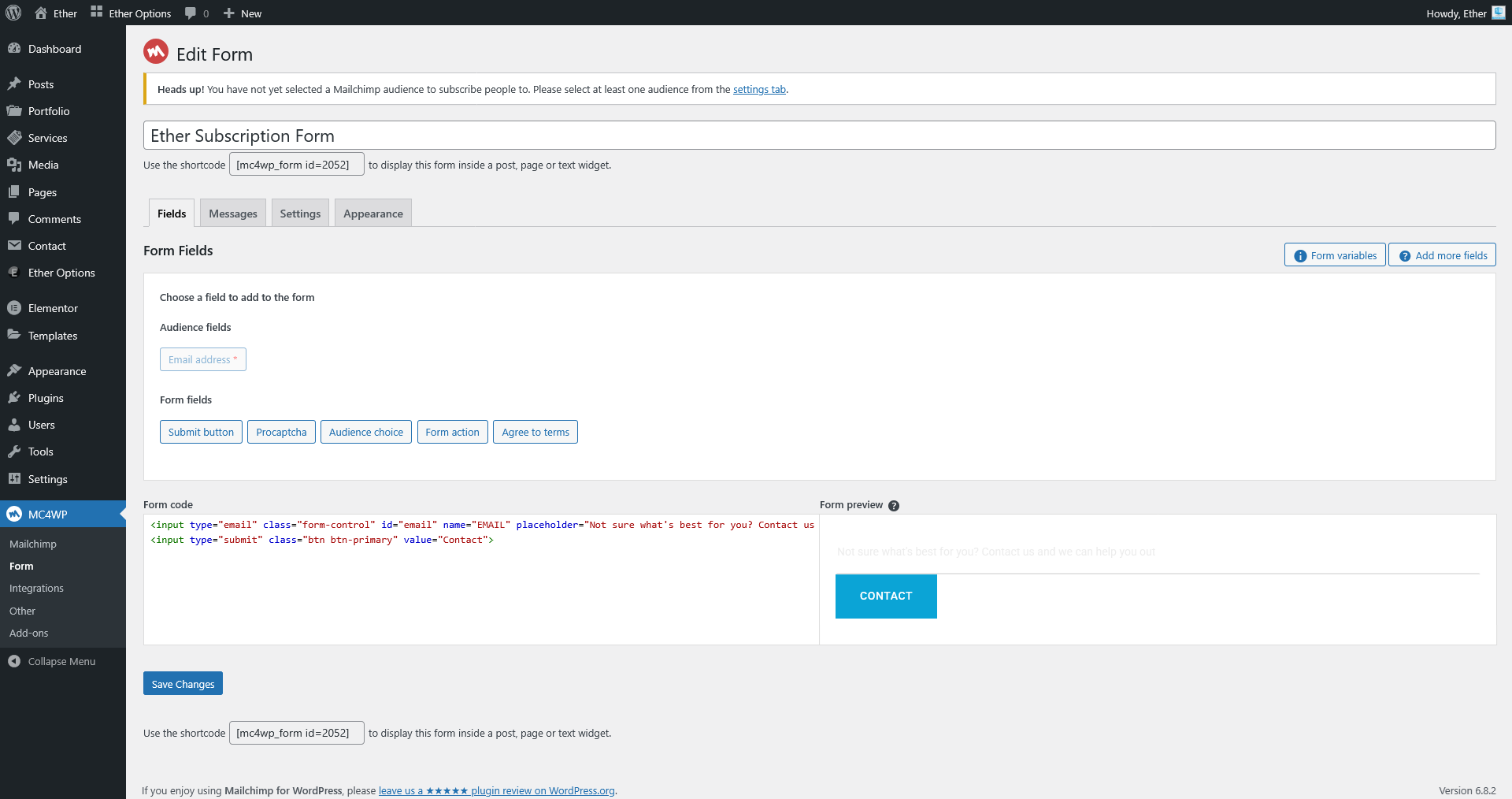
We have free version of Mailchimp, so we can add only one form at a time. To add new form or to edit any existing form, go to "Dashboard - MC4WP - Form"
- Title - Title of the form
-
Four Tabs
- Fields - Form code and preview
- Messages - Here you can control message for form to show on actions
- Settings - Control Mailchimp specific settings & Form behaviour
- Appearance - Form Style
Read out Mailchimp documentation to link API with theme Mailchimp Documentation.
Ether Subscription Form
							<input type="email" class="form-control" id="email" name="EMAIL" placeholder="Not sure what's best for you? Contact us and we can help you out">

							<input type="submit" class="btn btn-primary" value="Contact">
Ether Elements
In Ether WordPress Theme, you have different elements to add on any page of your theme. To use these elements, you have to install "Elementor" plugin. To install this plugin goto "Dashboard - Plugins" and activate "Elementor".
After installing and activating "Elementor" plugin, just go to any page where you want to add elements and click on "Edit with Elementor".
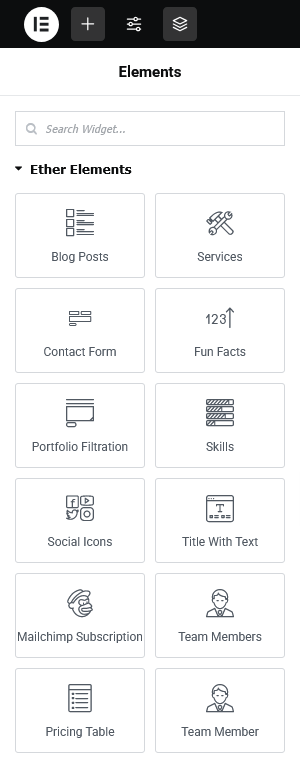
Ether Wordpress Theme has 12 elements.
- Blog Posts
- Services
- Contact Form
- Fun Facts
- Portfolio Filtration
- Skills
- Social Icons
- Title with Text
- Mailchimp Subscription
- Team Members
- Pricing Table
- Team Member
Source & Credits
Support
If this documentation doesn't answer your questions, So, Please send us Email via Item Support Page
We are located in GMT +5 time zone and we answer all questions within 12-24 hours in weekdays. In some rare cases the waiting time can be to 48 hours. (except holiday seasons which might take longer).
Don’t forget to Rate this theme
Go to your Themeforest Profile > Downloads Tab & then You can Rate & Review for our theme.
Thank You.
Changelog
Version 3.0 (August 15, 2025)
Initial Release